

The Grancam is an excellent addition to your home dart setup. If you have a Granboard, it’s the only supported way to have two cameras in your setup. You can have a GranCam showing the dartboard view, and a second camera (built into the device, or USB if using an SBC or Android box) facing the shooter. This setup sounds fantastic, doesn’t it?
However, some people have encountered challenges when using the GranCam for various reasons. Despite that, I personally find the GranCam very useful, and while I’ve faced some issues with it, I have been able to get it working 99% of the time. Let’s explore some tips, tricks, and important details to know about the GranCam.
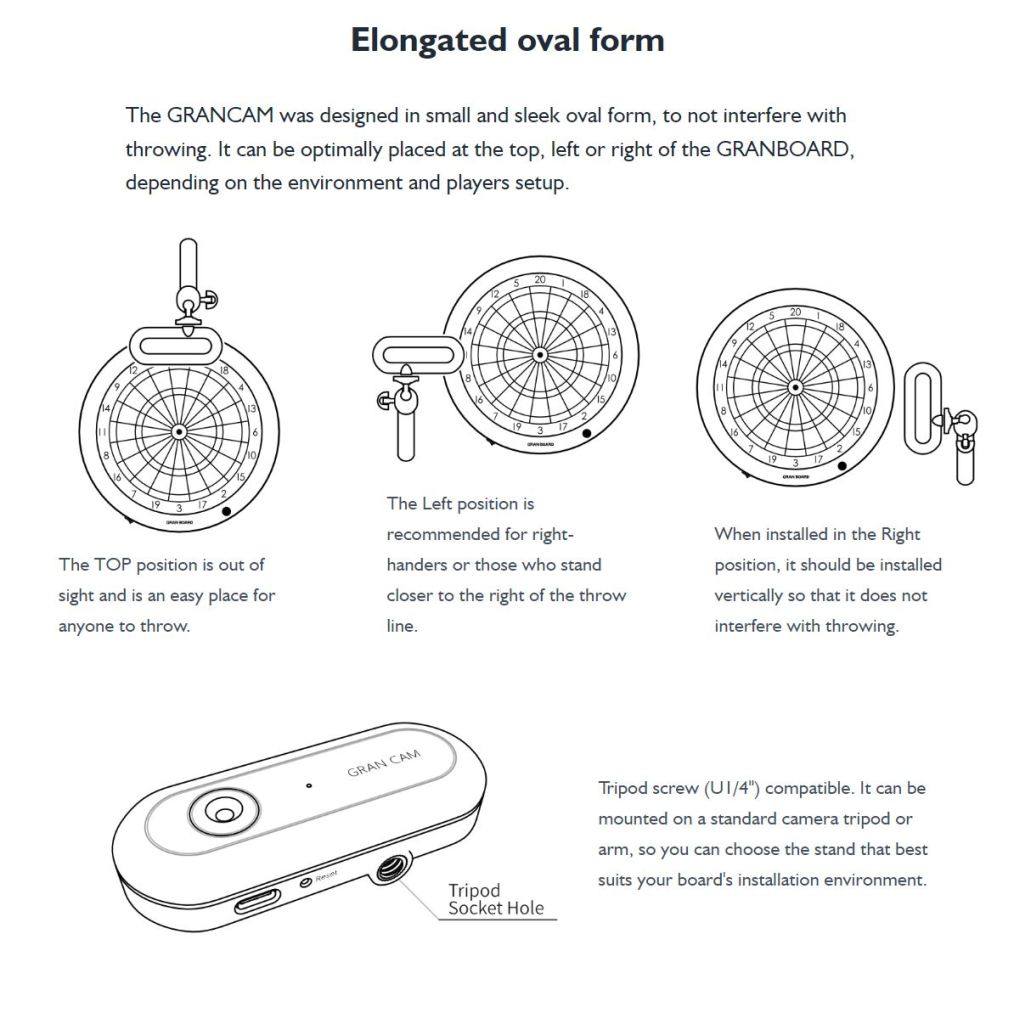
Pro tip: I use this arm to mount my GranCam and it’s an affordable option at $15.
GranCam Connection
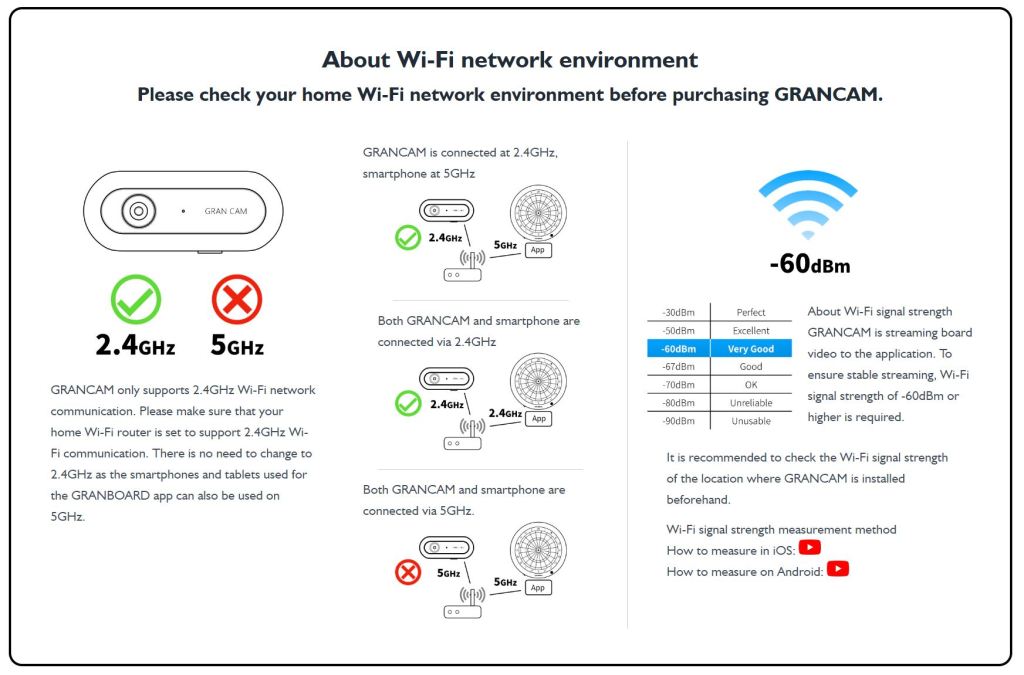
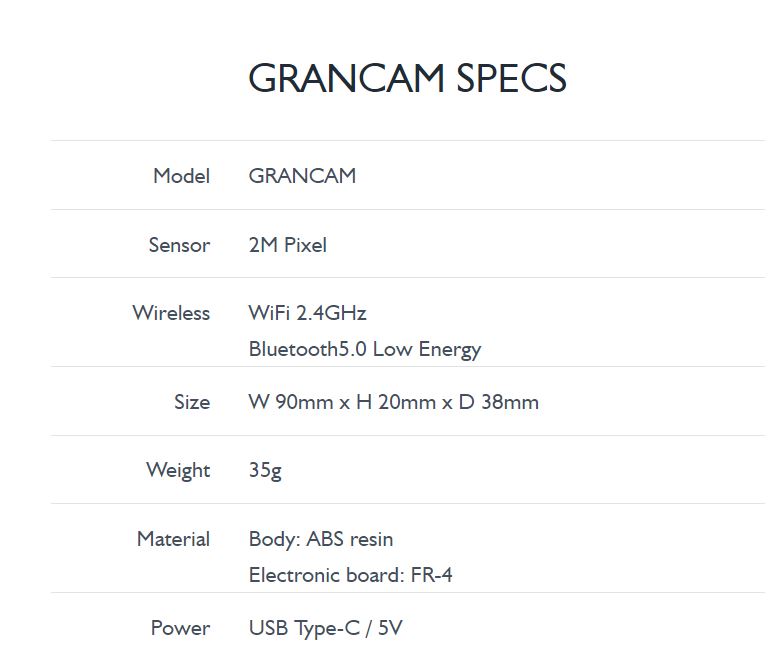
The GranCam is designed to connect to a 2.4GHz wifi connection, ensuring a smooth setup process. Even when using a wired connection with the Orange Pi device, temporarily switching to wifi during the initial setup allows the Granboard App to easily list the available WIFI hotspots.
Once connected, the GranCam is assigned an IP address by your router. This enables devices to communicate with it by knowing its IP address. If you ever need to reboot your router (which is natural from time to time), the IP address assigned to your GranCam may change. Not to worry – simply head to the Grancam settings in the Grandboard app and initiate a search for your GranCam to retrieve the latest IP address.
I’ve adjusted the sleep time to 45 minutes. I often take short breaks while playing, and I’ve found that setting the sleep time to 45 minutes works well for me. Occasionally, the GranCam takes a little while to wake up, causing some inconvenience. I’m taking proactive steps to ensure it doesn’t go to sleep and cause any interruptions.
Ceremony Before Playing
Every time I launch my Granboard app to play online, I follow a set of steps. These steps ensure that I have the best experience and can fully enjoy my game. Check out the video below to see my process in action.
- Go into the GranCam Settings and check if the cam is working
- If it’s not working, go deeper into settings and reboot the GranCam
- Verify it’s working and the setting is “ON”, then test it by toggling the setting from “OFF” to “ON”. What i’m looking for is that when it’s “OFF” the camera is not rendering on the screen, when it’s “ON” the camera renders.
Other Helpful Info


 KrakenDarts.com
Leave a comment